How to Scrape Amazon Best Sellers with CrawlPilot: A Step-by-Step Guide
Extract Amazon bestseller data — session prep, List Extractor walkthrough, what breaks, and how to structure your output for useful downstream analysis.

Amazon Bestseller Rank (BSR) is one of the clearest demand signals you can get without a paid research tool. A product ranked #1 in Kitchen Appliances is outselling everything in that category. Combined with price and review count, even 30 days of historical BSR data tells you more than most market reports.
The challenge is Amazon's detection system. Unlike a practice site, Amazon actively monitors automated access and serves incomplete data to sessions it has flagged.
This guide covers how to extract bestseller data with CrawlPilot's List Extractor, what breaks, and how to structure your data for repeated tracking. (For a code route, see Amazon scraping with Puppeteer.)
Before You Start: Session Preparation
Amazon's detection system treats fresh, cookieless sessions as suspicious. Do this before opening the extension:
- 01
Open a normal Chrome session (not Incognito) and browse Amazon naturally for 2–3 minutes — load the homepage, click a department, view a product. This establishes the cookie chain Amazon expects.
- 02
Use your regular Chrome profile, not a throwaway. A session with purchase history and browsing history has a higher tolerance for extraction than a brand-new session.
- 03
Don't use a VPN. Your IP should match your browser's timezone. Geographic inconsistency between IP and timezone is a detection signal.
- 04
Scroll to the bottom of the bestseller page before starting extraction. Amazon lazy-loads some products — they don't render in the DOM until you scroll to them. Wait 2–3 seconds after scrolling for everything to settle.
Navigate to Your Target Category
Go to https://www.amazon.com/Best-Sellers/zgbs and drill into your category using the left sidebar. The more specific the subcategory, the more comparable the data.
For this guide: Electronics → Headphones.
Wait until the full product grid is visible — typically 30–50 products.
Open CrawlPilot on the Bestseller List
Click the CrawlPilot icon in your Chrome toolbar. The side panel opens on the right. If the home screen doesn't offer Get them as a table, click A list under Or choose what you want. The first time, the panel may ask you to Allow access to the page (why).
Step 1: Point at One Product
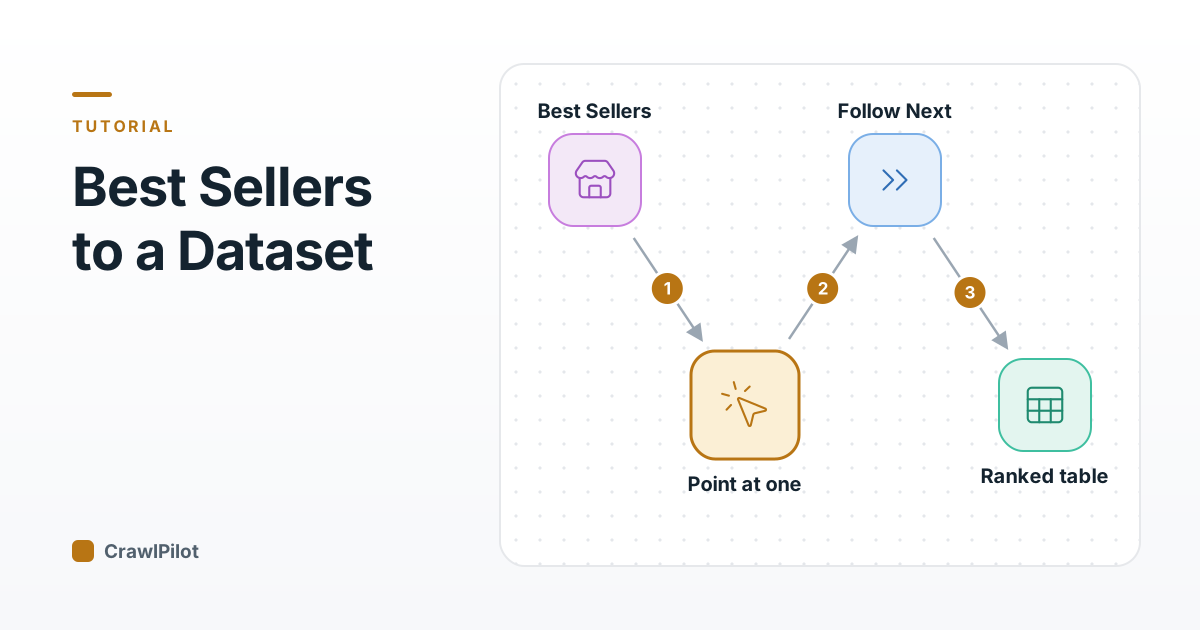
You don't map out columns or hunt for containers. You point at one product card and CrawlPilot detects the rest.
- 01Click Point at one item, then hover over one product card. The bestseller grid highlights, labelled with the number of cards it found. If it grabs the sidebar or the whole page, press ↓ for a narrower section.
- 02Click the card. The panel shows N items found (N should match the visible product count), the details per card and a preview. It picks up the details on the card, typically the rank, title, price, star rating, review count, and the product link (the ASIN is in it, e.g.
/dp/B09XS7JWHH/). If one you need is missing, the card didn't show it; check the page.
Before continuing:
- See the full preview to confirm the rows look right before the full run.
- Under the picked list, rename details to friendly names, remove the ones you don't need, or Edit a selector if something is off.
The details you want end up something like:
Step 2: Follow the Next Page Link
Amazon bestseller lists have a "Next page" link at the bottom. CrawlPilot looks for it itself, and the line above the button says what it will do, for example Then follows "Next page" through up to 2 pages. If it says Only this page, click Change, choose Pages with a Next button, then Point at the button and click the link once.
Bestseller lists are short, so 2 pages covers a category. Click the page number to set it.
Step 3: Get the Data
Click Get the data from N pages. Keep the side panel open while it runs; Stop ends the run and keeps every row read so far.
To keep every run on Amazon slow, save the run as a recipe afterwards and open its Site settings: Careful waits 4 seconds between pages and uses one tab.
Step 4: Open the Table and Export
When it says Done, click See your table, then Export and choose Excel (.xlsx), CSV or JSON (Google Sheets, Webhook, Airtable, and Zapier are also available). You get one row per product.
Useful post-processing in Google Sheets or Python (adjust the column names to yours):
What Breaks and Why
The good path and the three most common ways it goes wrong:
- Scroll all the way down and wait a few seconds. CrawlPilot reads what's rendered on the page, so lazy-loaded products must be there first.
- Point at one product and follow the Next link. The run reads every product in the ranked list.
- Skip the scroll and you get about half the list: the rest hadn't loaded.
- Run the same category again too soon and Amazon shows a CAPTCHA. Solve it by hand, wait, and space out your runs.
4 steps. Press Play to walk through them, or click any part of the diagram.
Price shows as blank for some products
Amazon requires a logged-in session to show prices on some third-party marketplace listings. If you see empty price fields, make sure you're browsing Amazon logged in before running the extraction. Your session cookies carry the login state into the extraction.
Item count stops at 15 instead of 30
Some products haven't lazy-loaded yet. Scroll all the way to the bottom of the page, wait 2–3 seconds, then start the extraction. CrawlPilot picks up what's rendered in the DOM at extraction time.
CAPTCHA appears mid-extraction
Amazon's detection was triggered. The extension cannot solve CAPTCHAs. Stop the extraction, solve the CAPTCHA manually in the browser, and wait at least 10 minutes before trying again. Don't extract the same category more than once every 30–60 minutes from the same session.
Pagination shows the same 30 products on both pages
Amazon uses JavaScript-triggered pagination on some category pages — clicking "Next" reloads content without changing the URL. If you see duplicated data, handle pages one at a time: get the first page, go to the second page and run again, then combine the two exports in your spreadsheet.
Price values vary from what you see normally
Amazon A/B tests pricing constantly. Different sessions see different price formats, promo badges, and discount overlays. The extension captures exactly what your session sees — which is correct, but may differ from another user's view on the same page at the same time.
Building a Useful Dataset Over Time
A single extraction snapshot has limited value. The signal comes from tracking rank changes over time.
Run the same extraction daily for 30 days and you can answer:
- Which products are consistently #1–#5 vs. occasionally appearing (trending or seasonal)?
- When did a new product enter the top 10, and at what trajectory?
- How do price drops correlate with rank jumps? (A product moving from $89 to $69 and jumping from #12 to #3 is a direct pricing signal.)
- Which brands dominate and how does that correlate with review count vs. competitors?
Save each export with a datestamp in the filename: headphones_bestsellers_2026-06-20.csv. After 30 days you'll have a dataset that no paid market research report covers for your specific category window.
Every run is saved in CrawlPilot's My data. Use Save as recipe on the first one, and from then on Run on the recipe repeats it each day with one click. Only new items keeps just the products that weren't in your data yet.