CrawlPilot Quickstart: Extract Structured Web Data in 5 Minutes (No Code)
Your first scrape with CrawlPilot, step by step on Books to Scrape: install, point at one book, follow the Next link, and export 32 books to Excel or CSV. Real screenshots, no code.

This guide uses Books to Scrape — a site built specifically for scraping practice. No login, no anti-bot measures. It's the best place to learn the tool before pointing it at your real targets, such as Google Maps business listings or Walmart search results.
By the end you'll have a table of every book in the site's Mystery category (32 books across 2 pages) with titles, prices, links and cover images, ready to export to Excel or CSV. Every screenshot below is from that run.
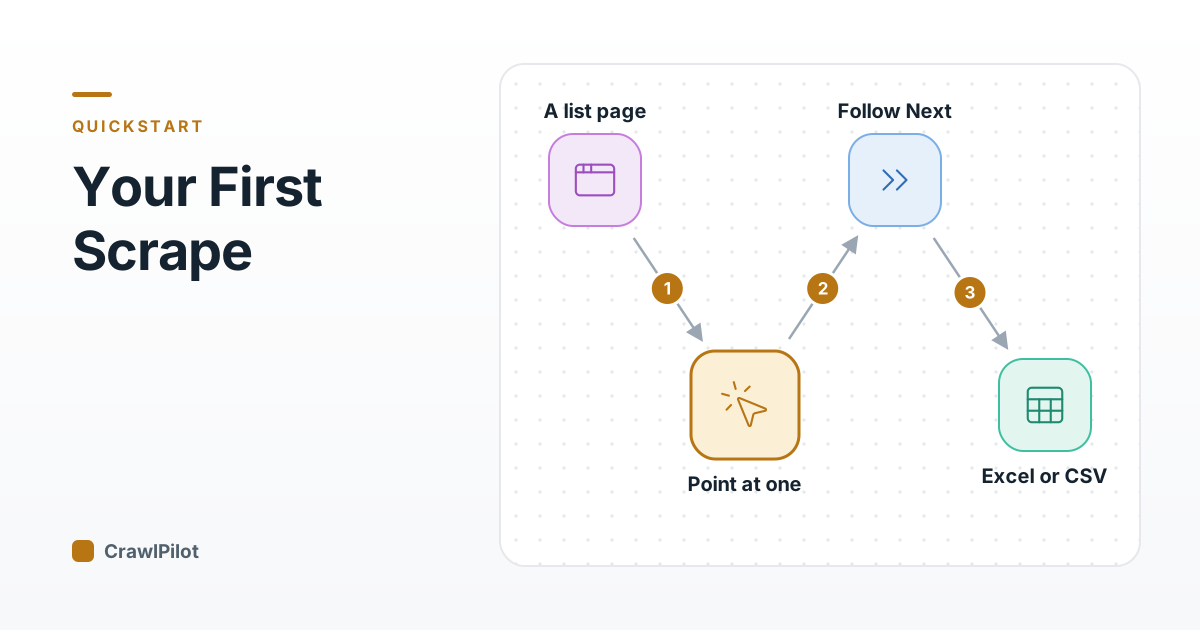
Here is the whole run before the details. Press Play, or step through it:
- Hover one book and click it. CrawlPilot works out what repeats around it and highlights all 20 books on the page.
- It keeps the details each book has (image, link, title and price) and a way to find every book again, with backups.
- It also finds the site's next link, so the run carries on to page 2 by itself.
- The category ends on page 2, so the run stops there with all 32 books in one table, saved in My data.
4 steps. Press Play to walk through them, or click any part of the diagram.
Step 1: Install the Extension
- 01Open CrawlPilot on the Chrome Web Store and click Add to Chrome.
- 02Click the puzzle icon in Chrome's toolbar, find CrawlPilot, and click the pin icon.
No account, no sign-up. The CrawlPilot icon now sits in your toolbar (the CrawlPilot overview covers what it does and its limits).
Step 2: Open the Target Page
Go to books.toscrape.com and click Mystery in the category list. The page shows 20 books with covers, star ratings, prices and stock, and says 32 results. The rest are on page 2.
Step 3: Open CrawlPilot
Click the CrawlPilot icon. The side panel opens on the right, and the home screen has already counted the books:
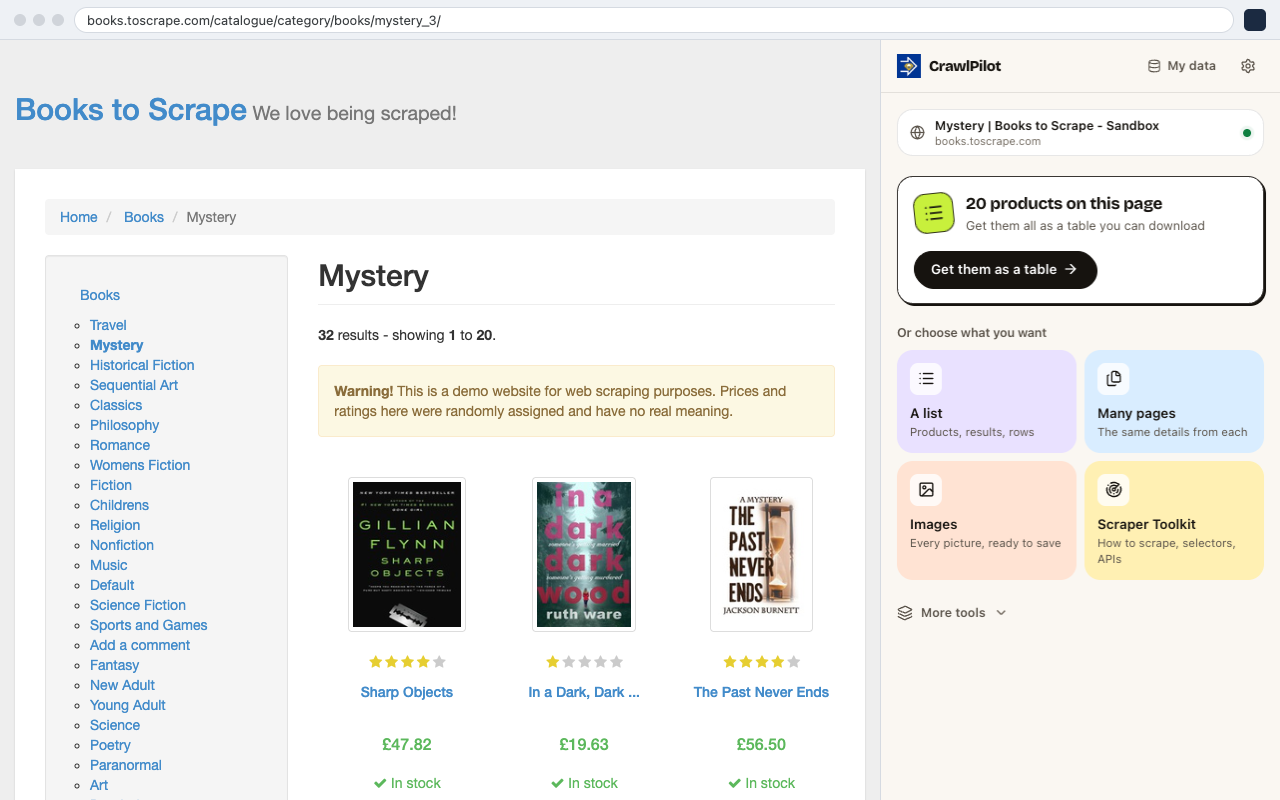
If the panel says CrawlPilot can't see this page yet, click Allow and confirm. That happens once.
Click Get them as a table.
Step 4: Point at One Book
Click Point at one item, then move your mouse over a book. The whole grid lights up with a label saying how many books it found:
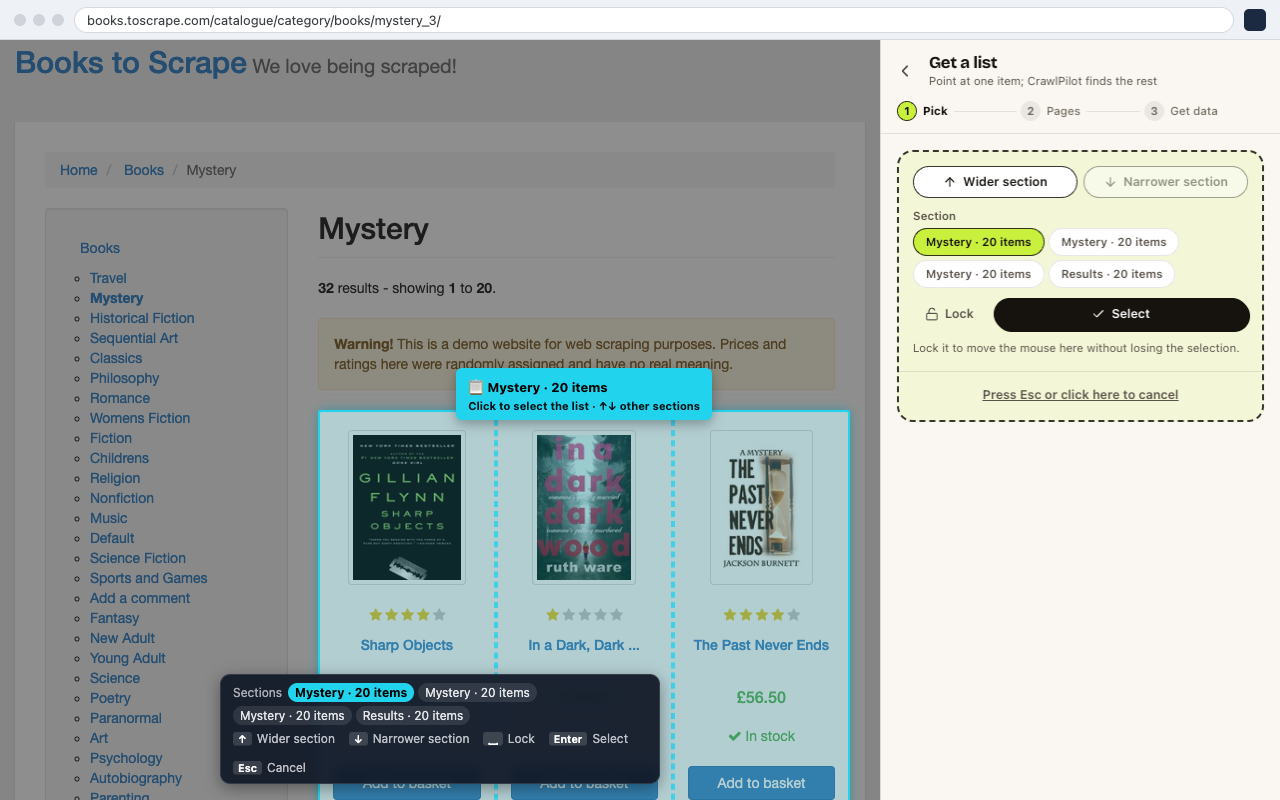
- 1The highlighted list and its count: Mystery, 20 items.
- 2Wider or narrower section, if the highlight covers too much or too little.
- 3The other candidate lists on the page, each with its count.
- 4Select confirms the list (or press Enter).
- 5The keyboard: arrows resize, space locks, Enter selects, Esc cancels.
Click the book. Aim for the middle of the card, not the Add to basket button. If the highlight covers too much or too little, press ↑ or ↓ first, then Enter.
Step 5: Check the Preview
The panel shows what it found: 20 items found, the details per item, and the first rows. It has also found the site's next link and plans to follow it:
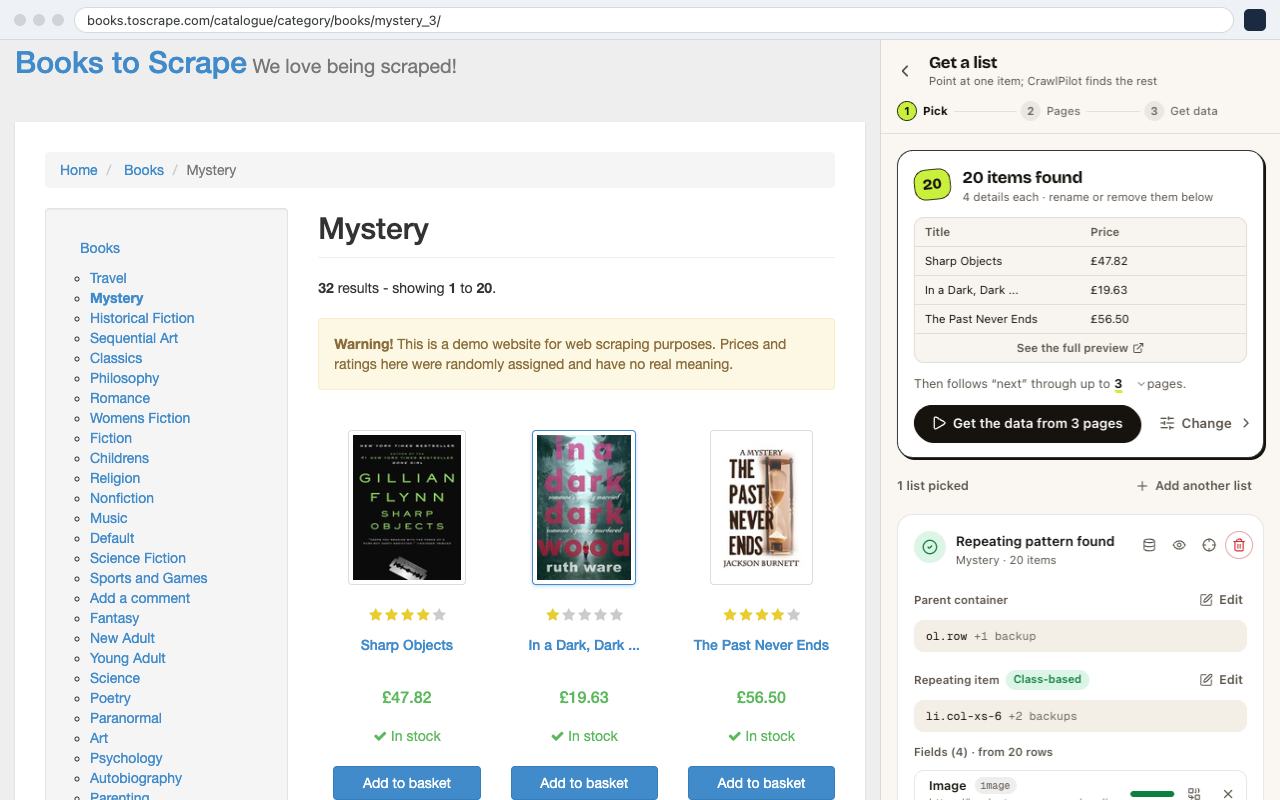
- 120 items found, with 4 details each.
- 2The first rows. See the full preview opens all of them.
- 3The next link it found, and how many pages it will follow at most.
- 4Starts the run. Change picks a different way to load more items.
- 5How it will find each book again: the pattern it learned, with backups.
See the full preview opens every row and column. Under the picked list you can rename or remove details. The Mystery category has only 2 pages, so the run will stop there even though up to 3 are allowed.
Step 6: Get the Data
Click Get the data from 3 pages. Keep the side panel open while it runs; Stop ends the run and keeps every row read so far.
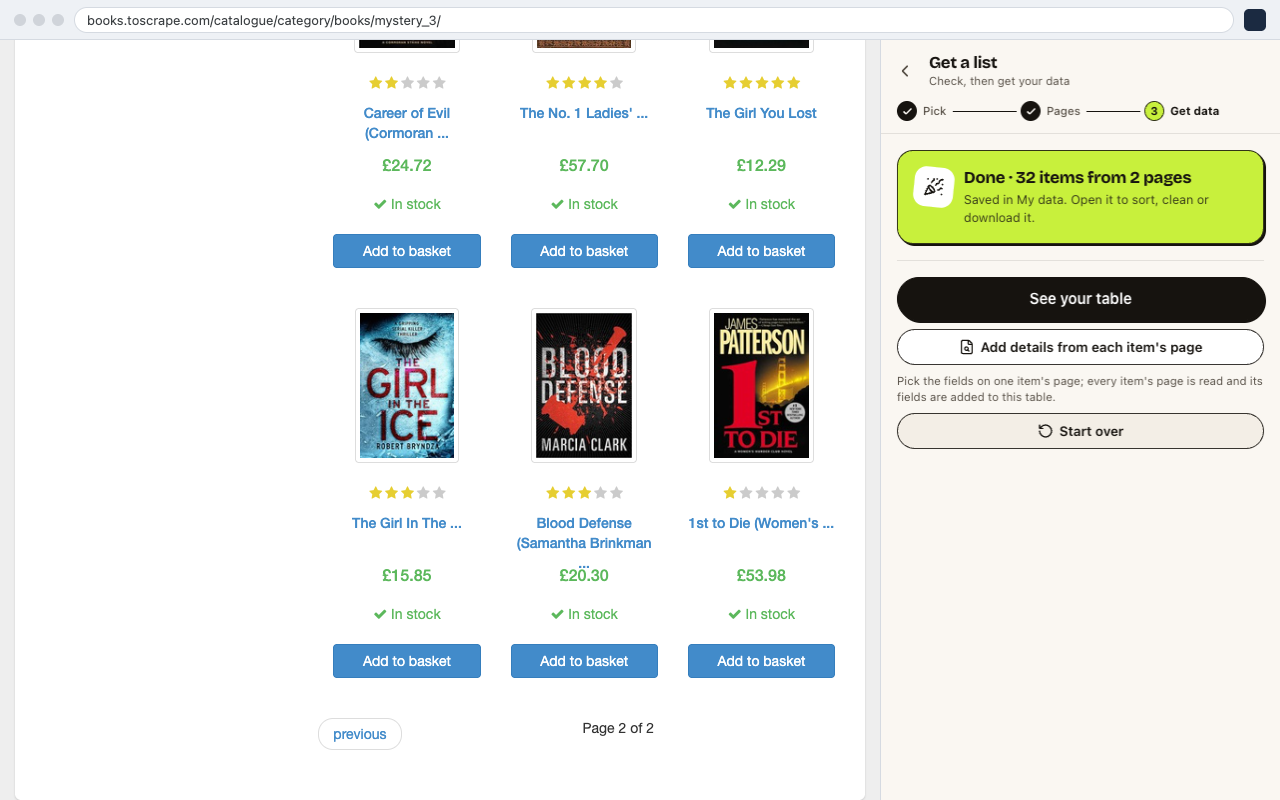
The run ended on page 2 of 2 with all 32 books.
Step 7: Open the Table and Export
Click See your table. Each book is a row with four columns:
| Image | URL | Title | Price |
|---|---|---|---|
| cover image link | …/sharp-objects_997/index.html | Sharp Objects | £47.82 |
| cover image link | …/in-a-dark-dark-wood_963/index.html | In a Dark, Dark ... | £19.63 |
| cover image link | …/the-past-never-ends_942/index.html | The Past Never Ends | £56.50 |
Click Export and choose Excel (.xlsx) or CSV (JSON, Google Sheets, Webhook, Airtable, and Zapier are also there). Open it in Excel or Google Sheets. You can also download the CSV from this run to see exactly what you'll get.
Two things you'll notice, both coming from the site rather than CrawlPilot:
- Some titles end in "...". The category page itself shortens long titles. The full title is on each book's page (see below).
- There's no rating column. Books to Scrape draws its stars with a CSS class (
star-rating Three), not text, so the run didn't pick them up as a value.
Troubleshooting
"CrawlPilot can't see this page yet"
Click Allow in the banner and confirm Chrome's dialog. If you limited site access, go to chrome://extensions → CrawlPilot → Details → Site access → On all sites, then reload the page.
"Fewer items found than the books on the page" The highlight picked a smaller section. Point at a typical book card again, and use ↑ for a wider section before you click.
"It read only the first page" The line above the button says Only this page when no Next link was found. Click Change, choose Pages with a Next button, then Point at the button and click the site's next link once.
What to Try Next
When a run finishes, click Add details from each item's page. Point at the fields you want on one book's page (the full title, description, UPC, stock count), and CrawlPilot reads every book's page and adds those columns to the same table. See the Page Extractor docs for the options, and the List Extractor docs for everything the list tool can do. Choosing between tools? See Instant Data Scraper vs CrawlPilot.