What Is CrawlPilot? A No-Code Web Data Extraction Extension, Honestly Reviewed
An honest look at what CrawlPilot actually is in version 3: each tool, what it does, how they chain together, where your data goes, and where the tool genuinely falls short.


CrawlPilot is a Chrome extension that extracts structured data from web pages without code. You open it as a side panel, point and click at what you want, and get a CSV or JSON file back.
That's the one-line version. This post covers what each tool actually does, how they fit together into a workflow, and what CrawlPilot cannot do — because knowing the limits saves you from picking the wrong tool for a job.
The Tools
CrawlPilot (version 3.1) opens as a side panel in Chrome. The home screen looks at the page you're on first: on a listing it says 45 products on this page and offers to get them as a table; on a product page it offers that product's details. Below that are the tools, named by what you get.
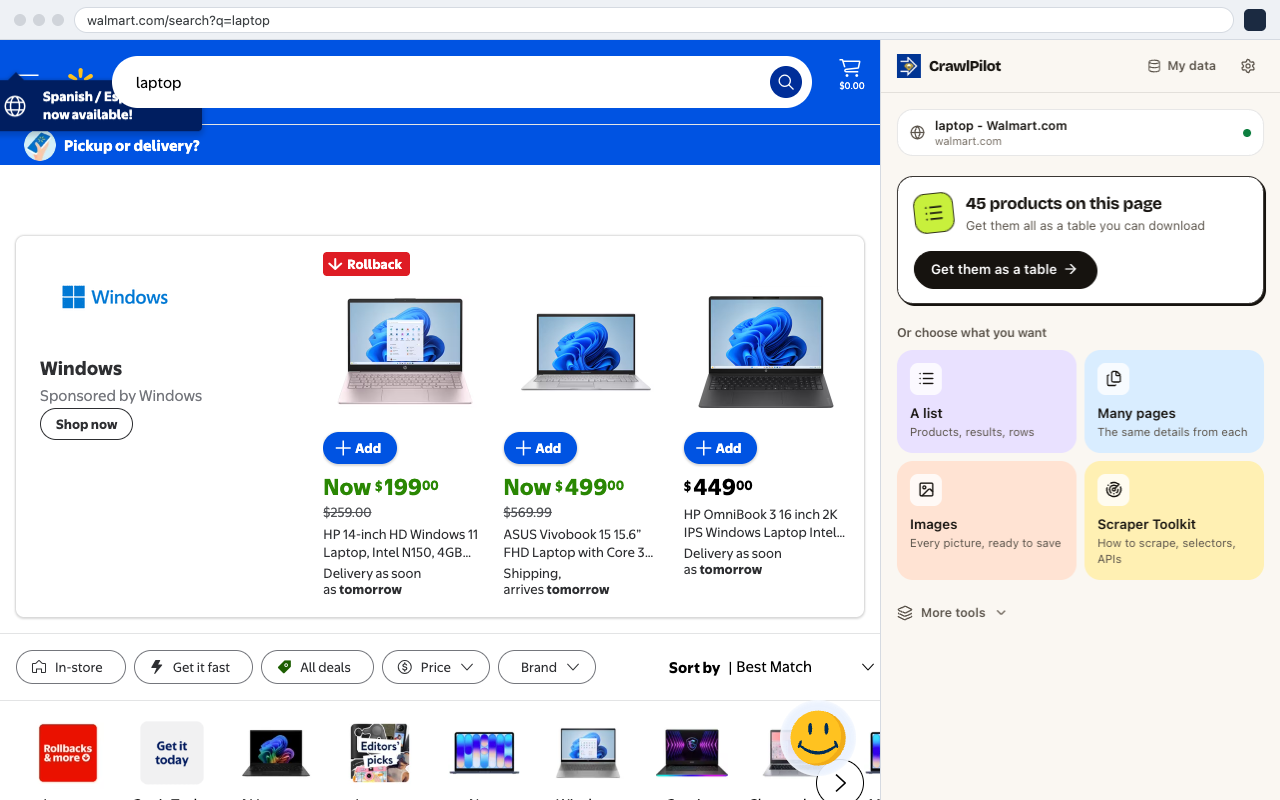
- 1It looks at the page first: here, 45 products ready as a table.
- 2One click starts the list extractor on what it found.
- 3Or pick by what you want: a list, the same details from many pages, images, the developer toolkit.
- 4Scraper Toolkit: for developers — how to scrape, a selector lab, an API finder.
- 5My data: every run, ready to open, download or run again.
Get a list from this page
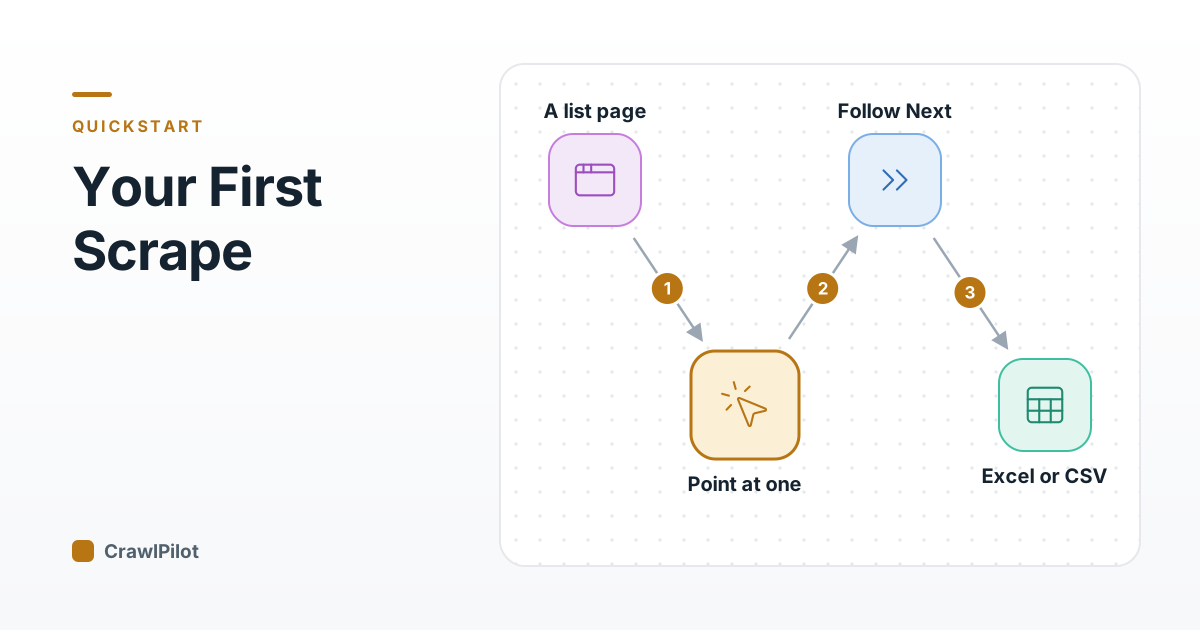
The core tool. Point at one repeating item (a product card, a job, a search result) and CrawlPilot finds every item like it, works out the details on each (titles, prices, ratings, review counts, links, images) and shows a preview. It finds the Next link or Load more button itself and can follow it across pages. Stop always keeps the rows read so far.
Best for: product grids, search results, job boards, directories. Docs.
Same details from many pages
Give it a list of URLs (paste them, upload a CSV, take them from a table you have, or find them in the site's sitemap). Then pick the fields once on one page, or choose Article text & details for the title, author, date and full text with no setup. Pages run in a background window, so no tabs open over your work. When a list run finishes, Add details from each item's page does the same for every item in the list.
Best for: product details, article text for an LLM, enriching a list. Docs.
Contacts from websites
The emails, phone numbers and social profiles companies publish, read from their contact and about pages: one company at a time, or a whole list of websites. Docs.
Tables on this page and Page as Markdown
Tables finds every real data table on the page, ready to copy into Sheets or download as CSV (how this compares with Instant Data Scraper). Page as Markdown turns the page into clean Markdown with a token count, for notes or an LLM. Tables · Markdown.
Download images
Every image on the page, including full-size originals, with duplicates removed, ready to filter and save as a ZIP. Docs.
Page assistant and AI Extract
A brief of the page you're on, where every point is checked against the page, plus answers that cite where the page says it. AI Extract fills a schema you describe from the page. Both run on Gemini Nano, the model built into Chrome, so the page never leaves your computer. They need Chrome's built-in AI. Docs.
Scraper Toolkit
For developers: how to scrape a page (plain HTTP, embedded JSON, or a browser), a selector lab, and an API finder that turns the JSON API behind a page into a recipe. Docs.
How the Tools Work Together
The tools chain, and most chains now happen in one place. Lead generation is the clearest example — step through it:
- Get a list from a directory or search results: company names and websites, one row each.
- Run Contacts from websites on that list's website column: emails, phones and social profiles, one row per company.
- Export to Excel, or send straight to a Google Sheet that feeds your CRM.
3 steps. Press Play to walk through them, or click any part of the diagram.
The same shape drives the other chains:
Price monitoring:
- Get a list from a competitor's category page → products, prices, links
- Save the run as a recipe; Run it again whenever you want a new snapshot, with Only new items if you only want what's new
- Send each run to the same Google Sheet and compare over time
Content research:
- Same details from many pages → Article text & details on 50 article URLs
- Export as Markdown files or JSONL for an LLM
Product catalogue:
- Get a list from a brand's products page, then Add details from each item's page → SKU, description, specs and price added as new columns
- Export to Excel → import to your database
What's Stored Where
Everything you extract is stored locally in your browser. Nothing is uploaded, and CrawlPilot has no analytics and needs no account. The AI tools run on your device too.
Data leaves your computer only when you send it: to your own Google Sheet (through an Apps Script you own), or to a webhook, Airtable or Zapier address you set up.
My data lists every run, ready to Open, Download or Run again. Save the ones you'll repeat as recipes. The data table (opens in a new tab) lets you sort, filter, edit cells and clean columns, and exports to Excel, CSV or JSON.
What CrawlPilot Does Not Do
Being clear about limitations is more useful than a feature list.
No scheduled / unattended runs. CrawlPilot is a browser extension — it runs in your Chrome, on your machine, while your browser is open. There is no cloud runner. If you need extractions to run overnight on a schedule while your laptop is closed, this is not the right tool. Scheduled jobs are on the roadmap.
No automation of complex multi-step flows. The Page Extractor supports clicking elements before extracting, but it is not a general automation tool. Logging in as part of the extraction workflow, filling multi-step forms, or interacting with complex JavaScript components (date pickers, drag-and-drop, canvas) are outside its scope.
Uses your session — good and bad. The extension runs inside your existing Chrome session, so it sees logged-in pages, member prices, and authenticated dashboards that cloud scrapers cannot reach. The flip side: if you close Chrome or log out, running jobs will fail, and a list run stops if you close the side panel. For large jobs, keep Chrome open and plugged in.
Not reliable on infinite scroll with aggressive anti-bot measures. LinkedIn, Instagram, and similar platforms use both infinite scroll and strong automation detection. CrawlPilot will extract what's already rendered in the DOM, but triggering additional content loads may be unreliable on these platforms.
Performance at very large scale. The data table shows the first 2,000 rows of a dataset (exports always include every row). For hundreds of thousands of rows, a server-side scraping solution is more appropriate.
Who Gets the Most Value from It
Analysts and researchers who need data from specific pages they're actively looking at. The gap between "I want this data" and "I have this data" is 5 minutes, not a Jira ticket.
E-commerce teams tracking competitor pricing, product assortment, and availability. Manual price checks become a recipe you run again with one click.
Sales and ops teams building lead lists, gathering contact information, or pulling data from directories — without waiting for engineering.
Developers prototyping a scraper. Use CrawlPilot to verify which fields are extractable and what the DOM structure looks like before writing a production scraper. Skip the DOM archaeology phase.
If you want to try the core flow in a few minutes on a site with no login or bot detection, the getting started guide walks through it end to end on a practice site, with real screenshots.