Tables on This Page
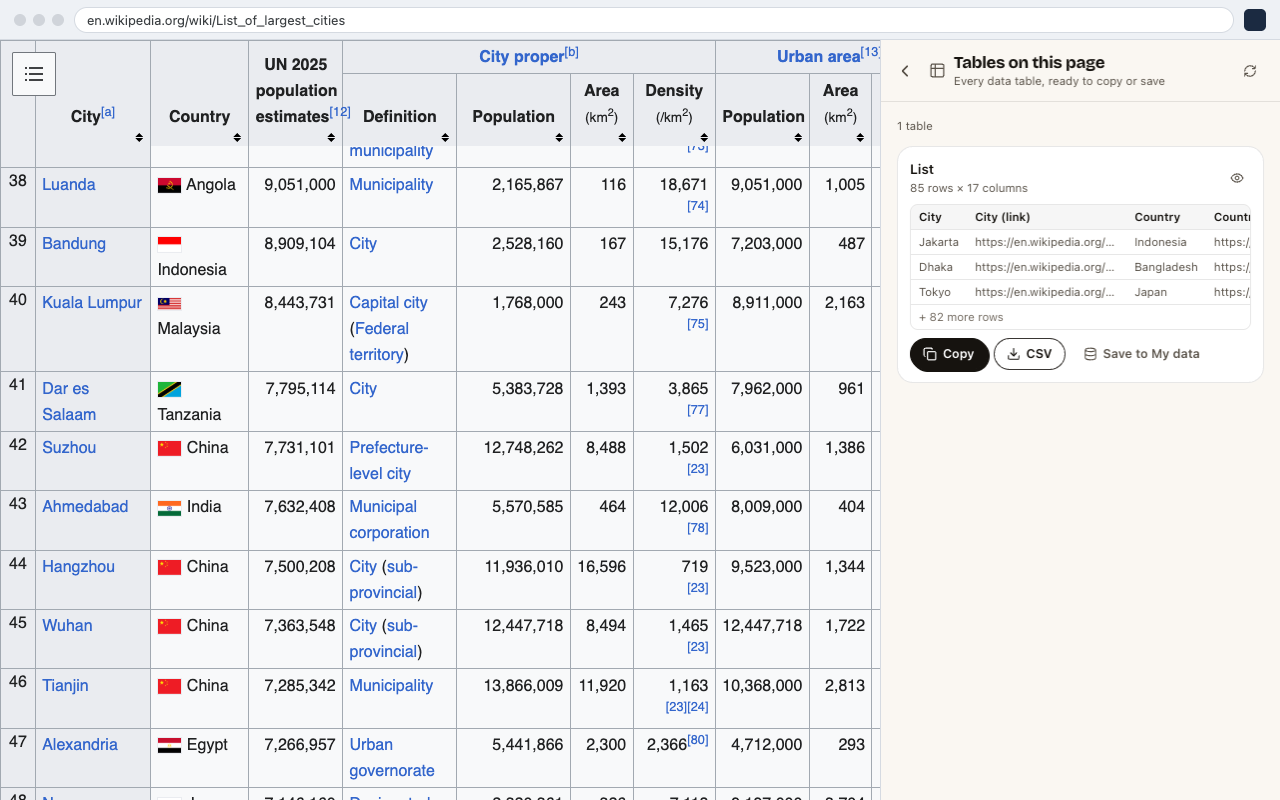
Tables on this page finds every data table on the page you're on and gives you each one ready to copy, download as CSV, or save to My data. There's nothing to set up.
When to Use It
- Statistics, rankings and price lists published as tables (Wikipedia, government data, sports results)
- Comparison tables on product or review pages
- Any
<table>you'd otherwise select and copy by hand
For product cards, search results or rows that aren't a real table, use Get a list from this page instead.
How to Use It
- 01Open the page with the table.
- 02Open CrawlPilot → More tools → Tables on this page.
- 03Each table appears as a card with its row and column count and a preview of the first rows.
- 04Choose what to do with it:
- Copy pastes into Google Sheets or Excel as cells.
- CSV downloads the table as a file.
- Save to My data keeps it with your other runs, so you can open it in the full table, clean it, and export to Excel, JSON or Google Sheets.
- The eye icon (Show on page) scrolls to the table and highlights it.
Header rows that span several columns are flattened into names like Q1 › Revenue. A link in a cell gets its own column next to the text, as shown in the City (link) column above.
What Is Left Out
Only data tables are listed. Page layout tables, menus, hidden tables and one-row tables are skipped. If a table you can see isn't listed, click Look again (the refresh icon) after the page has finished loading.