Metadata Extractor
Note
Since version 3, the Metadata Extractor is Article text & details, the first choice in Same details from many pages. On an article page, the home screen's Get its text opens it too. For a single page, Page as Markdown gives you the text right away.
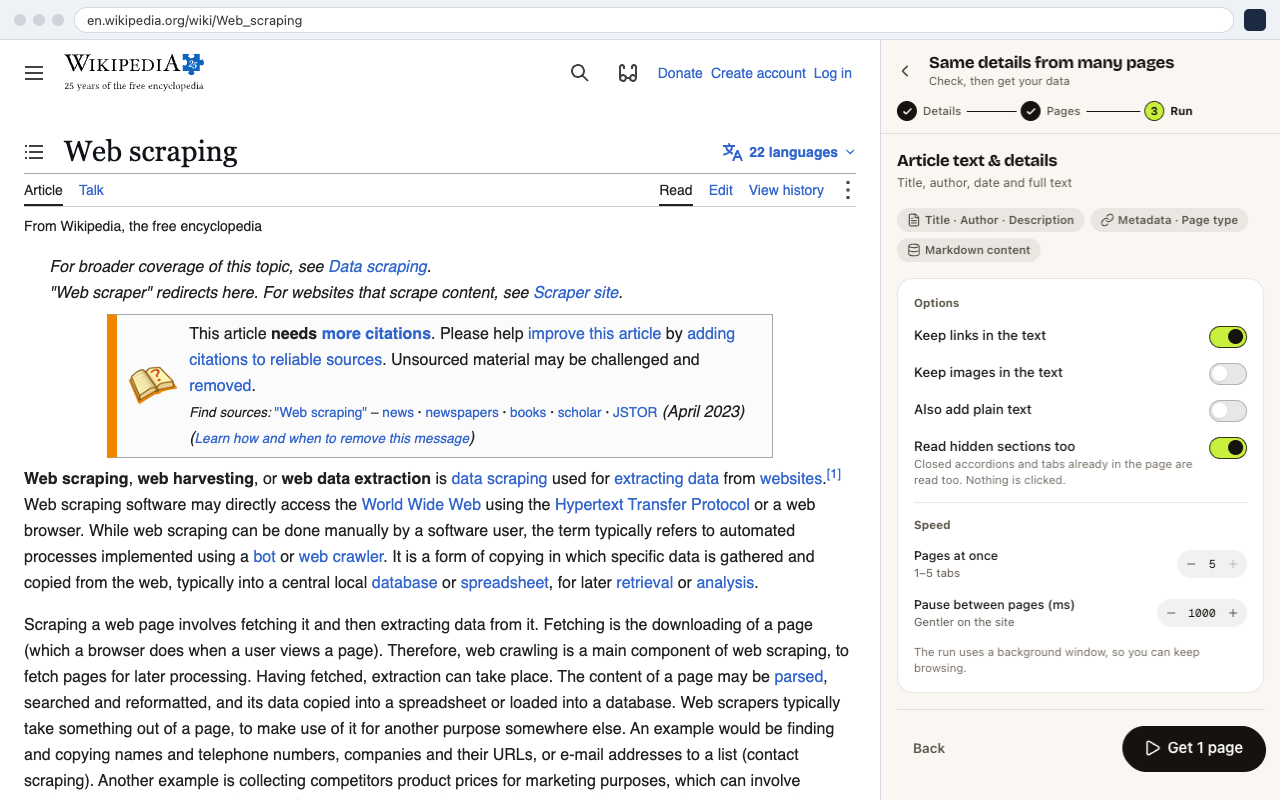
Article text & details reads a list of pages and returns one row per page with its metadata and its full text as Markdown. There are no selectors to pick.
When to Use It
- Clean article text from a reading list, for notes or an LLM
- An SEO check of titles, descriptions and authors across your own site
- A dataset of articles with their dates and text for research
How to Use It
- 01Open CrawlPilot → Many pages → Article text & details.
- 02Add the pages: the page you're on, Upload a file, A list you saved, or Find pages on this site (from its sitemap).
- 03Set the options:
- Keep links in the text and Keep images in the text
- Also add plain text: a plain-text column next to the Markdown
- Read hidden sections too: closed accordions and tabs already in the page are read. Nothing is clicked.
- Pages at once (1–5 tabs) and Pause between pages. A pause is gentler on the site.
- 04Click Get N pages. When it's done, click See your table.
What You Get
Each row has the page's title, author and description, its metadata and page type, and its content as Markdown.
Export for an LLM
Besides Excel, CSV and JSON, a dataset of article text can be exported as:
- Markdown files (.zip): one
.mdfile per page - JSONL for LLMs: one JSON object per line, ready for embeddings or fine-tuning pipelines
Open the table and click Export. See My Data, Recipes & Export.
Example: Check Your Blog's Titles and Descriptions
- 01Open your blog's home page, then CrawlPilot → Many pages → Article text & details.
- 02Choose Find pages on this site and keep only the post URLs (for example Only URLs like
/blog/). - 03Click Get N pages, then See your table.
- 04Sort by the description column to find posts without one, and Export → Excel (.xlsx) to share the list.