Accessibility Trees vs Screenshots: How AI Agents Should See an App
Vercel Labs' agent-desktop brings the accessibility-tree approach from browsers to desktop apps. What an accessibility tree is, how the snapshot-and-ref loop works, why it beats pixel guessing, and where it goes blind.

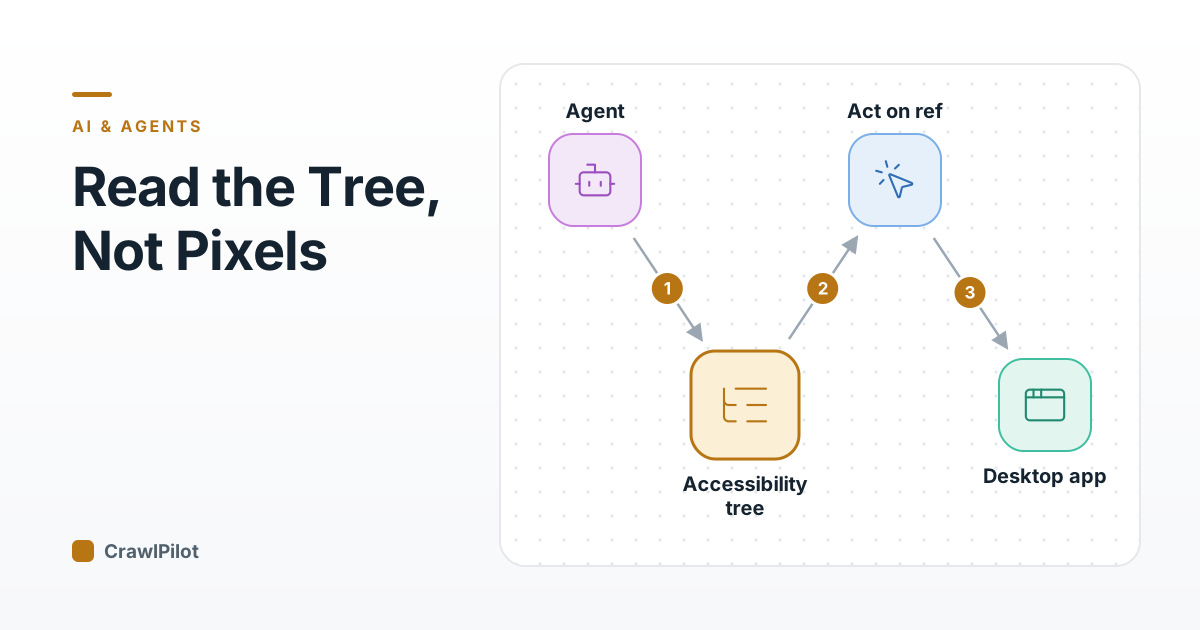
The obvious way to let a model operate an app is to show it what a person sees: take a screenshot, ask the model where the Save button is, click there. It is also the hardest version of the problem. The model has to recognise a button from its pixels, guess its exact bounds, and hope the layout hasn't moved by the time the click lands. Meanwhile the operating system already knows there is a button, that it's called Save, and that it's enabled, because screen readers need that information to work at all.
On October 31, 2026 Vercel Labs released agent-desktop, an open-source CLI that gives agents computer use on macOS, Windows and Linux by reading that accessibility information instead of screenshots. Its author described it as agent-browser for your whole computer, and the comparison is exact: it brings the approach we covered in our Vercel Agent Browser guide from web pages to native apps.
Two Ways to See the Same Window
- Works on anything that draws to the screen, labelled or not
- Needs a vision-capable model on every step
- A moved dialog or a theme change breaks the click
- Can't tell a disabled button from an enabled one unless it looks different
- The model gets an image and must find the button by how it looks
- Acts on coordinates such as x=812, y=440
- No vision model needed to find the target
- Survives layout shifts: the reference points at the element, not a spot
- Exposes state: enabled, selected, value
- Blind where the app doesn't label its controls
- The model gets a list such as: button 'Save' (enabled), text field 'Filename'
- Acts on a reference to the element, not a position
Verdict: Read the tree first and act on references; keep screenshots for the parts of an app that don't describe themselves.
An accessibility tree is the interface as the operating system describes it to assistive technology: a hierarchy of elements, each with a role (button, text field, menu item), a name, often a value, and states such as enabled or selected. Each OS has its own API for it: the Accessibility (AX) API on macOS, UI Automation on Windows and AT-SPI on Linux. agent-desktop is written in Rust and ships as a CLI plus a C library with an adapter for each (Marktechpost). Neither it nor agent-browser is a model; they are the agent's eyes and hands, and the agent you already run decides what to do.
The Loop: Snapshot, Pick a Reference, Act, Snapshot Again
Everything in this style runs one loop. The agent takes a snapshot, which returns the tree with a short reference for each element. It picks a reference and acts on it. Then it takes a new snapshot, because the action changed the interface and the old references may no longer point at anything. Step through a save in a text editor:
- The agent asks for a snapshot of the app, usually filtered to interactive elements so the list stays short.
- The snapshot lists each element with a reference. The agent reads that @e3 is the enabled Save button and decides to press it.
- The tool performs the press on that element through the accessibility API. No coordinates are involved.
- The press opened a dialog, so the old references are stale. The agent snapshots again before its next action.
4 steps. Press Play to walk through them, or click any part of the diagram.
On the command line it is short. The project's own macOS example, as quoted by Flavio Copes, uses Finder:
The -i flag keeps only interactive elements, and each reference carries the ID of the snapshot it came from, so an agent can't accidentally reuse a reference from an older view. agent-browser does the same for web pages, with shorter references like @e2:
Two habits make the loop reliable. Snapshot again after anything that changes the screen, and treat a stale-reference error as "look again", not as a failure. Agents that cache an old snapshot to save a call are the ones that click the wrong row after a list re-sorts.
Accessibility Action First, Mouse Last
Having a reference doesn't mean the tool moves the mouse to it. The better tools in this space try the element's own accessibility action first (press, set value, select) and only synthesize a physical click or keystroke when the element doesn't support one. Cua's driver, for example, returns the tree and a screenshot together, tries accessibility actions first and falls back to pixel clicks. The accessibility action doesn't care whether the window is partly covered or on another monitor, and it doesn't steal the user's cursor.
Before you run any of this on your own machine, it needs permission to read and drive other apps. On macOS that means granting Accessibility permission to the terminal that runs it (ai-tldr's setup notes), which is exactly as powerful as it sounds.
Where the Tree Goes Blind
The approach is only as good as the labels apps publish, and plenty of apps publish little.
The agent can find and operate this element by reference. Every condition below holds.
- The app exposes a treehandled
When it's missing: Games and canvas-drawn interfaces often expose no tree at all, so there is nothing to snapshot. Fallback: screenshot plus coordinate clicks.
- The element has a namehandled
When it's missing: An icon-only button shows up as 'button' with no label, and the agent can't tell it from its neighbours. Fallback: screenshot of that region, or its position in the tree.
- The element supports an actionhandled
When it's missing: The control ignores the accessibility press, so the tool gets an 'action not supported' error. Fallback: synthesized mouse or keyboard input.
- The snapshot is freshhandled
When it's missing: The interface changed after the snapshot and the reference now points at nothing, or at the wrong row. Fallback: snapshot again before acting.
Three more limits are worth knowing before you build on it:
- No web pages. agent-desktop can't see apps that lack an accessibility tree, and it doesn't automate web pages; Vercel points people to agent-browser for those.
- Linux differs by display server. On Linux, mouse input needs X11 or the headed mode, and clipboard access on Wayland needs
wl-clipboard(same source). - Snapshots are private data. A snapshot of your desktop can include email subjects, chat messages and documents, and clipboard reads can include passwords. explainx lists this as the main risk. Anything that sends snapshots to a hosted model is sending that content too.
Why This Matters Beyond Desktop Apps
For anyone building web agents, this is the same lesson the browser tools learned first. A page's accessibility tree is a cleaner, smaller description of what a person can do than its raw HTML or a screenshot, and references are sturdier than selectors or coordinates. It also cuts the other way: apps and sites that label their controls properly become far easier for agents to use, which is one more reason accessibility work pays off. For scraping, where you read rather than operate, the trade-offs are different, and we compare them in AI agents vs traditional web scrapers.
Q1An agent clicks @e3 from a snapshot taken before a dialog opened, and gets a stale-reference error. What should it do?
Q2When does an agent need to fall back to screenshots?
The idea
- The OS describes every control for screen readers: role, name, value, state.
- macOS uses AX, Windows uses UI Automation, Linux uses AT-SPI.
- agent-desktop does this for native apps; agent-browser does it for web pages.
The loop
- Snapshot with -i to list interactive elements and their refs.
- Act on a ref, never a coordinate, when one exists.
- Snapshot again after any change; a stale ref means look again.
Where it fails
- Apps with no tree: games, canvas UIs.
- Unlabelled controls such as icon-only buttons.
- Web pages inside a desktop app; use a browser tool.
Before you run it
- It needs OS accessibility permission to read and drive other apps.
- Snapshots and clipboard reads can hold private data.
- Prefer accessibility actions; synthesize input only as a fallback.
Sources
- Vercel Labs open-sources agent-desktop for agent computer use, Marktechpost, October 31, 2026
- A deep dive into agent-desktop, Flavio Copes
- agent-desktop: a computer-use CLI, azukiazusa
- agent-desktop, ai-tldr
- Vercel Labs releases agent-desktop, AI Chat Daily
- agent-browser README, Vercel Labs
Related posts
More in AI & Agents →
Inside obra/superpowers: How a Skill Pack Gets Coding Agents to Follow a Process
Nov 13, 2026

The Agentic Browser Wars: Comet vs Atlas vs Chrome Auto Browse vs Claude Cowork
Jul 14, 2026

Agentic Commerce Is Coming for E-commerce: What Google's UCP and OpenAI's ACP Mean for Sellers
Jul 14, 2026

LangGraph vs CrewAI vs AutoGen in 2026: The Multi-Agent Framework Race Just Narrowed
Jul 14, 2026